Route10 default DoH blocked sign-in to Epic Games

Hi, anybody encountered same issue that Alta Labs default DoH settings blocked sign-in portal for Epic Games? I had to disable DoH to be able to login.

Anybody from Alta can comment on this? Looks like default DoH setting has some ad block enabled? unfortunately there is no option to create a white-list so ended up has to disable the entire DoH setting (less secure).

login url: https://store.epicgames.com/login?lang=en-US&state=%2F%3Flang%3Den-US

I haven’t heard of anything like this, and didn’t find anything in our support tickets that refers to Epic Games.

If you can grab a packet capture, we could potentially take a look at what is going on.

Jeff, can I do packet capture on the Route10 itself? any instruction that you can share?

just found this thread.. i will try this first: Packet capture on Route10

Great. We’re also working on our own article internally:

Packet Capture on the Route10

Capturing packets on the Route10 is a powerful way to detect and diagnose issues on your network. At times, Alta Support may request that you obtain a packet capture from your Route10 in order to understand and troubleshoot issues.

First off, you will need to be familiar with using SSH on the Route10. For more information about that, please refer to https://help.alta.inc/hc/en-us/articles/26753020799131-How-To-Use-SSH-Keys-For-Management

Secondly, it is important to disable hardware acceleration on the Route10, since only unaccelerated packets can be captured by the Linux system. To do this, click on the Device Icon in the Devices page, and under Advanced, set Acceleration to Disabled. After you have finished capturing packets, please be sure to set this back to the previous setting.

After you have ssh’ed to the Route10, you will need to decide which interface to capture packets on. The LAN interface(s) are in the format of “br-lan” and can have an optional VLAN tag on the end, i.e. “br-lan_2” for VLAN2. WAN interfaces are typically eth3 for WAN1, and eth4 for WAN2. Hover over the IP address of the Route10 in the Network Page to see a listing of all interfaces that are available on your Route10. You can also capture all packets on the Route10, all WANs, and all VLANs, by omitting an interface (remove the “-i br-lan” completely).

After you have determined the interface, you are ready to capture:

tcpdump -i br-lan -n -v -s 0 -w /tmp/cap.pcap

Hit CTRL-C after you have reproduced the issue you are experiencing. tcpdump should indicate the number of packets that have been captured as they are in progress. You can then use scp to copy the file off of the Route10, from a separate system:

scp root@192.168.1.1:/tmp/cap.pcap /tmp

(On Windows, it is easiest to use a GUI utility such as WinSCP)

If you expect your capture to exceed the amount of available RAM in the Route10, i.e. 1GB+, then it is recommended to perform a real-time capture, as outlined below.

Real-time capture

You can also tunnel packets to the Wireshark in real-time, or to avoid the storage constraints of the Route10. For a full guide on how to set up Wireshark for this, please refer to the article:

https://help.alta.inc/hc/en-us/articles/46512851684763-Using-your-Alta-Labs-Access-Point-as-a-WiFi-Sniffer

As an example, if you are tunneling the packets to port 3333 on your Wireshark system, it is important to filter out those packets with the “not port 3333” filter:

tcpdump -i br-lan -n -v -s 0 -w /tmp/cap.pcap not port 3333
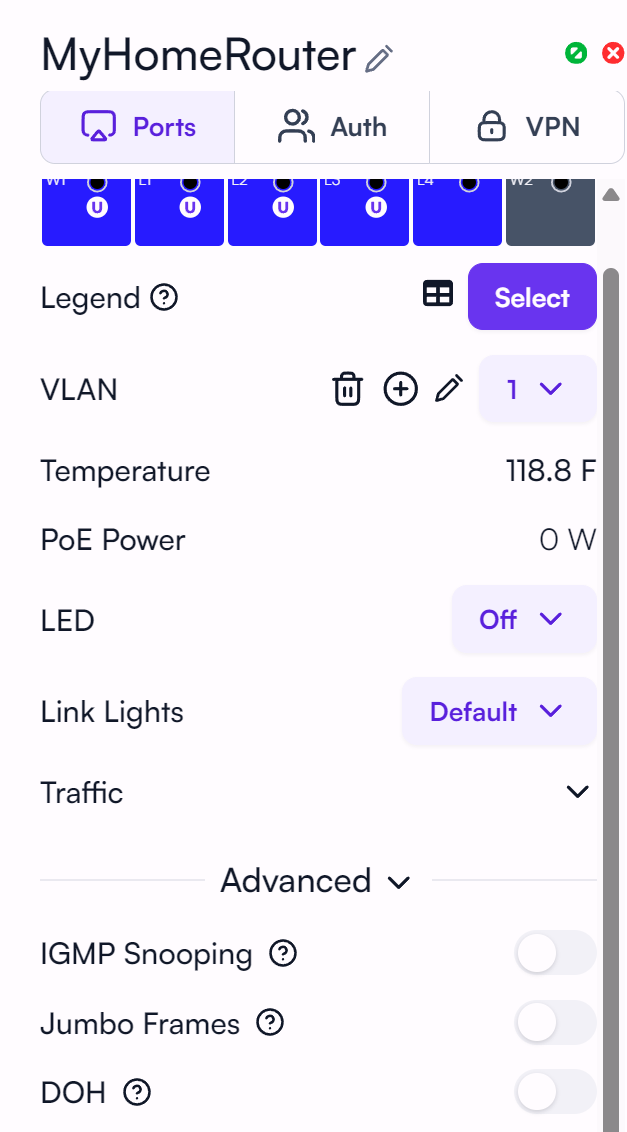
I recall that OpenDNS is one of the DNS providers used when DoH is enabled. I wonder if it’s possible some kind of block was occurring there? I suppose a packet capture would definitely reveal more details in that regard though :slight_smile:

I agree with jmszuch below .. i am certain it is OpenDNS.

By the way, how i attached pcap file? the upload only allow gif/pics.

===================

login as: root
Authenticating with public key “AltaLabs_Route10”
Passphrase for key “AltaLabs_Route10”:

BusyBox v1.33.1 (2021-10-24 09:01:35 UTC) built-in shell (ash)


            |‾      ‾|     /\   |   ‾‾|‾‾  /\
            |   /\   |    /  \  |     |   /  \
            |  /  \  |   /   _\ |___  |  /_   \
            | /    \ |
            |_      _|         L  A  B  S

Shell access is provided solely for debugging assistance. Please
be aware that Alta Labs is not responsible for commands that may
damage the device, void the warranty, or extend functionality
beyond Alta Labs’ intended scope.

    Remember, with great power comes great responsibility.

root@MyHomeRouter:~# ifconfig
br-lan Link encap:Ethernet HWaddr BC:B9:23:81:5A:3C
inet addr:192.168.1.1 Bcast:192.168.1.255 Mask:255.255.255.0
inet6 addr: fe80::beb9:23ff:fe81:5a3c/64 Scope:Link
UP BROADCAST RUNNING MULTICAST MTU:1500 Metric:1
RX packets:2904908 errors:0 dropped:0 overruns:0 frame:0
TX packets:4353208 errors:0 dropped:0 overruns:0 carrier:0
collisions:0 txqueuelen:1000
RX bytes:1167726592 (1.0 GiB) TX bytes:4463239921 (4.1 GiB)
eth5 Link encap:Ethernet HWaddr BE:B9:23:84:5A:3C
inet addr:10.10.10.245 Bcast:10.10.10.255 Mask:255.255.255.0
inet6 addr: fe80::bcb9:23ff:fe84:5a3c/64 Scope:Link
UP BROADCAST RUNNING MULTICAST MTU:1500 Metric:1
RX packets:5314904 errors:0 dropped:0 overruns:0 frame:0
TX packets:2903468 errors:0 dropped:0 overruns:0 carrier:0
collisions:0 txqueuelen:1000
RX bytes:4875447374 (4.5 GiB) TX bytes:1207911751 (1.1 GiB)
Base address:0x4000

root@MyHomeRouter:~# tcpdump -i -n -v -s 0 -w /tmp/cap-doh.pcap
tcpdump: -n: No such device exists
(SIOCGIFHWADDR: No such device)
root@MyHomeRouter:~# tcpdump -n -v -s 0 -w /tmp/cap-doh.pcap
tcpdump: listening on br-lan, link-type EN10MB (Ethernet), capture size 262144 bytes
^C14581 packets captured
14769 packets received by filter
0 packets dropped by kernel
root@MyHomeRouter:~#

=======
PC IP Address: 192.168.1.154
Route10 - internal IP: 192.168.1.1
Route10 - external IP: 10.10.10.245

Capture contains before (with DoH enable) and after (DoH disable).
URL to check - it will stucked/blank with DoH enabled:

  1. https://store.epicgames.com/?lang=en-US
  2. https://store.epicgames.com/login?lang=en-US&state=%2F%3Flang%3Den-US

How can i share the pcap safely with only Alta Labs personel? For security reason

You could share from a google drive or dropbox link, etc.

Have you tried disabling DOH under Advanced on the Route10?

I think it was mentioned that turning off DoH resolved the issue, which is what kicked off the question :wink:

I’ll say that I decided to test logging into my Epic Games account with DoH on and was able to do so without any issue. Just to add an extra data point :smiley:

Ah, you’re right. They probably have an IP-address-based configuration on OpenDNS that blocks Epic, then (i.e. DNS queries from their specific IP address will block Epic).

Thanks for the pointer. I do have OpenDNS free acct that I used in the past. Looks like Alta’s DOH setting willl trigger my OpenDNS settings that have epicgames blocked.

I do have DDNS thru opendns that might have caused OpenDNS to associate Alta’s DOH request using my internet IP to that old setting i have.

it works now after i unblocked epic. thanks and sorry for the false alarm :slight_smile:

Interesting! I imagine this is a rare scenario , but it does make me think that OpenDNS might not be optimal as a third set of DNS servers for the router to reach out to