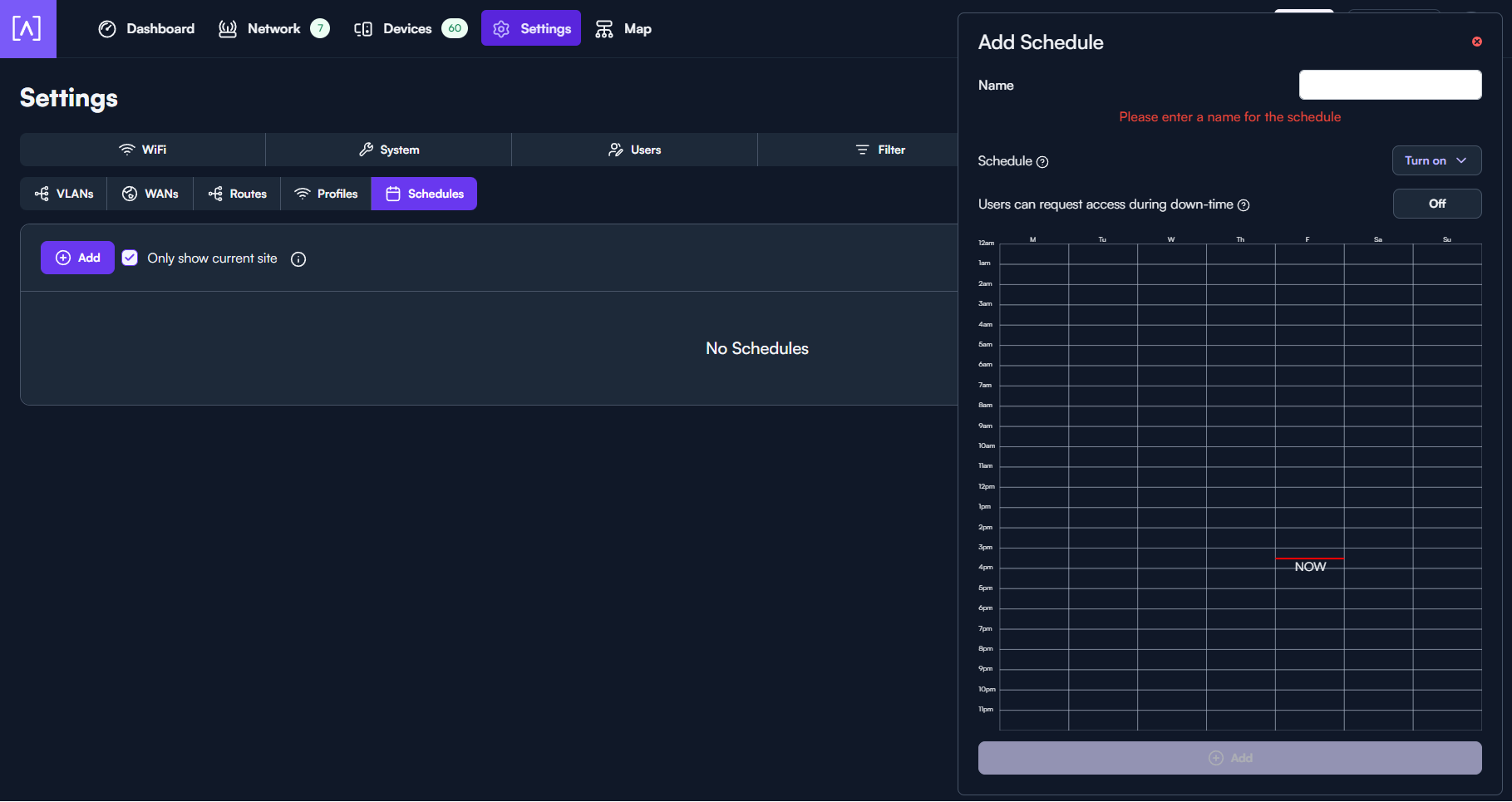
This release expands scheduling capabilities across the platform, providing more flexible control over network access policies and allowing schedules to be applied at a more granular level.
Add support for schedule profiles. Assign a schedule to a specific password, voucher, or client, instead of being SSID-wide
Add support for schedules on filters. Turns on/off the filter based on a schedule
WiFi Schedules move from being exclusively per-SSID, to a global list of schedules which can be assigned to individual passwords, vouchers, SSIDs, and clients
This update is being rolled out now. You can manually initiate the upgrade if you’d like, or it will automatically update overnight (if auto-updates are enabled). The complete, up-to-date change log is available here:
As always, if you have questions or encounter any issues, feel free to reply here or start a new topic. Please include details about the issue so we can assist you effectively.
so you moved the Schedule section away from an easy to find location to one that took 15 mins and a google search to this thread to find… I wouldn’t say its helpful where it is in face makes the setup look more clunky. is there a dedicated profiles tab somewhere rather than a little click box under random other profile things in the ssid settings hidden from direct view ?
My AP Pro 6 updated and now I can’t change its IP. It was statically assigned and no matter what I do, it won’t save back to the IP I had assigned. I click save, it shows that it’s saved, switch tabs, and it’s back to a different IP.
I had to pick a different IP different from the original static IP, then change it again. Still strange that the IP got changed after the update though.
Sounds like the Fallback Upon Failure mechanism invoked. That will invoke when it detects network connectivity issues, and sometimes will even trigger device upgrades. When invoked it will fall back to DHCP on the untagged VLAN, ignoring any configured static IP (and management VID, if applicable).
Rebooting he device is the only way to automatically have it recover, otherwise you can change to another IP, and then back, as you noticed.
If this behaviour isn’t desirable then you can turn it off from the switch or AP settings within the device’s configuration card, on the Settings page.
Prior to this change, schedules could only be applied at the SSID level, so they lived within the SSID configuration. Schedules can now be assigned to passwords, vouchers, clients, and filters, so they were moved to a shared location and can be reused across the system instead of being tied to a single SSID.
One more point: Schedule profiles are accessible anywhere there is a Schedule dropdown. You can get to it from the Password, the Voucher, the Client, almost anywhere; just click the + icon (or edit/delete if the schedule is already selected). You don’t need to navigate to Settings->Networks->Schedules, though it is also there.